AI Productivity Tools: Step-by-Step Workflow Guide

Introduction: What an AI Productivity Workflow Can Do for You
AI productivity tools can save you hours each week when your day gets buried in inbox checks, meeting follow-ups, and scattered task lists. If you want to learn how to use AI tools for productivity, start with the work you repeat every day.
An AI productivity workflow is a simple system that uses AI tools for work to handle routine tasks faster and with less mental drag. You keep control of decisions, while AI helps you sort email, capture meeting notes, plan next steps, and draft content. That shift gives you more focus time for client work, strategy, and deep thinking.
In this tutorial, you’ll build a repeatable process around four high-value use cases:
- Email management for faster triage and replies
- Meeting notes that turn conversations into action items
- Task planning to organize priorities for the day
- Content drafting to create first drafts in less time
This setup works well if you’re a knowledge worker, freelancer, or small business owner who wants better digital productivity without adding a complicated tech stack.
You do not need a perfect system. You need one you’ll actually use every day.
A protective “workflow shield” illustrates how AI productivity tools keep your work organized.
What You’ll Need: The Minimum AI Setup
Your AI workflow only needs a small stack to start. Pick one general AI assistant for writing, summarizing, and brainstorming, then add one or two specialized tools for email, meetings, or task planning.
Keep your setup connected to the apps you already use. You should have ready access to your email, calendar, note-taking app, and task manager so your workflow automation stays simple.
Choose tools that match your real work, not a long wish list. For many teams, the best AI tools for work tasks include one chat assistant, one meeting note tool, and one task app.
Next, save 3 to 5 repeatable prompts or templates for common jobs like email replies, meeting summaries, and weekly planning. That gives AI tools for freelancers and small business a practical starting point.
Pro tip: Start small. Fewer tools means faster habits.
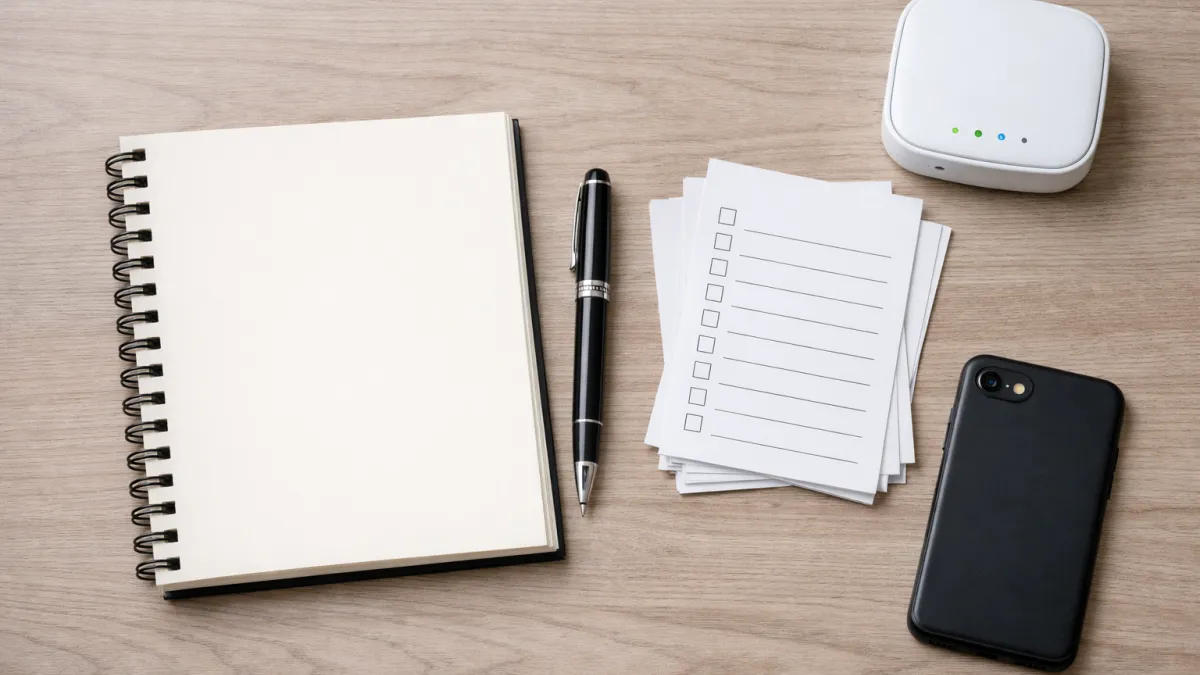 Start small: one writing assistant, one workflow hub, and a simple capture system.
Step 1: Identify the Work You Should Automate First
List every task you handled in the last 5 workdays. This is the fastest way to see how to automate work with AI without guessing. Include email replies, meeting follow-ups, status updates, research notes, scheduling, and task sorting.
Use a simple audit:
- Write each task in one line.
- Add how often it happens each week.
- Estimate minutes spent each time.
- Mark whether it feels repetitive or requires judgment.
This matters because your best automation targets usually hide in plain sight. You should now see which tasks eat 30 to 120 minutes a week through repetition alone.
Separate thinking work from admin work next. Your strongest AI workflow for knowledge workers supports execution, but it should not replace your judgment on strategy, hiring, pricing, or sensitive feedback.
Mark tasks in two groups:
- High-value thinking: decisions, analysis, creative direction, client advice.
- Admin and process work: summaries, first drafts, inbox triage, note cleanup, task extraction.
Pro tip: If a task follows the same pattern 3 or more times a week, test it for productivity automation first.
Choose only 3 to 4 starting use cases. That keeps your system manageable and improves adoption. Good early picks include drafting routine emails, summarizing meetings, turning notes into tasks, and creating first-pass content outlines.
You should now have a short list focused on real time saving, not tool overload.
 Capture what you actually did over the last days to find the best automation targets.
Step 2: Set Up an AI Email Assistant for Faster Email Management
Connect your inbox to an AI email assistant and start with three jobs: summarize long threads, draft routine replies, and suggest next actions. This is one of the fastest ways to improve email management because email repeats the same patterns every day.
Set it up around the messages that slow you down most. Think status updates, scheduling chains, internal approvals, and client follow-ups with clear context.
Choose the email tasks AI should handle first:
- Summarize threads longer than 5 messages
- Draft replies for low-risk, repeat questions
- Pull action items, deadlines, and owners from emails
This matters because you want speed without giving up judgment. You should now see a short list of tasks your assistant can handle safely.
Create simple rules for when AI writes and when you reply yourself. Use AI for routine messages, but answer manually when the email involves conflict, performance feedback, legal terms, pricing changes, or sensitive client issues.
Pro tip: If a message could damage trust when phrased poorly, do not auto-send it. Let AI draft it, then edit every line yourself.
Train the assistant on your tone with 3 to 5 real examples of emails you have written. Ask it to match your usual length, greeting style, and level of formality so your replies sound like you.
You should now see drafts that need light editing, not full rewrites. That is the real test of how to use AI for email management well.
Review every draft before sending, especially in your first 2 weeks. Among all AI tools for work, email tools save time fastest when you keep a human check in place.
- Summarize long threads
- Draft routine replies
- Review sensitive messages manually
 A physical mail tray represents how an AI email assistant can summarize and route messages faster.
Step 3: Turn Meetings into Action with AI Meeting Notes and Summaries
Capture every meeting in one place with AI meeting notes. When your meetings produce transcripts, you stop relying on rushed note taking and start working from a complete record.
Use one tool for all recurring calls. Record the meeting, save the transcript, and have your system create meeting summaries within 2 minutes after the call ends.
Set a standard summary prompt so every recap follows the same format:
- Main goal of the meeting
- Key decisions made
- Action items
- Owner for each task
- Deadline or next check-in date
This matters because consistency makes summaries easier to scan, compare, and trust. You should now see a short recap that tells you what happened without rereading 30-60 minutes of conversation.
Pro tip: Ask your tool to flag unclear owners or missing dates. That catches loose ends before they turn into missed follow-ups.
Extract decisions and tasks automatically with AI tools for meeting notes and summaries. Good systems can pull lines like “Sarah will send the draft by Friday” into a clean task list with an owner and due date.
After each meeting:
- Review the summary for accuracy
- Edit vague action items
- Send the final version within 15 minutes
You should now have a usable record that moves work forward.
Store every summary in a searchable folder or knowledge base. Name files with date + meeting name + project, and tag them by team, client, or topic.
Pro tip: Keep one master folder for all summaries so you can search past decisions fast later.
 Turn spoken discussions into structured notes using AI meeting notes and summaries.
Step 4: Use AI for Task Planning and Prioritization
Collect your action items from meetings and email into one running list. This is where AI task management starts to save real time, because you stop switching between notes, inboxes, and chat.
Paste your meeting summary and flagged emails into your AI tool, then ask it to extract tasks with owners, deadlines, and missing details. You should now see one clean list instead of scattered requests.
Ask AI to sort the list for task prioritization using three filters:
- Urgency: due today, this week, or later
- Effort: under 15 minutes, 15 to 60 minutes, or multi-step
- Deadline: fixed date, flexible date, or no date yet
This works because urgent tasks are not always the most valuable. When you know effort and deadline, you can plan your day with fewer surprises.
Pro tip: Use this prompt: “Group these tasks by urgency, effort, and deadline. Then recommend my top 3 priorities for today based on impact and due date.”
Build a simple planning routine around that output. If you want to learn how to plan tasks with AI, use the same check-in every morning or every Monday.
- Review new meeting actions and email requests
- Ask AI to rank them
- Move the top 3 to 5 tasks into your calendar or task app
- Reserve 30 minutes for quick wins first
You should now have a repeatable AI workflow that turns incoming work into a focused weekly plan.
Step 5: Draft Faster with AI Content Drafting Workflows
Choose 3 to 5 repeatable writing tasks for AI content drafting first. Good starting points include emails, proposals, social posts, project briefs, and client updates, because they follow patterns and reward speed.
Feed your tool a real example, your audience, and the goal. This helps AI tools for work tasks produce a usable first draft instead of generic copy you have to rebuild.
Prompt the draft with a simple structure:
- What you need written
- Who will read it
- The desired tone
- The key points to include
- The length limit
You should now see a clear outline or rough draft in 30 to 60 seconds. That matters because content creation gets faster when you edit a solid starting point instead of facing a blank page.
Pro tip: Save your best prompt as a template for each document type. Reusing it cuts setup time and improves consistency.
Refine the draft with your voice, audience, and goal before you send anything. Ask AI to make the message more direct, more persuasive, or more concise, then add your facts, examples, and final judgment.
This step keeps the work yours. AI handles structure and speed, while you control accuracy, tone, and context.
Review every draft with a fast 3-pass check:
- Check facts, names, dates, and numbers
- Cut filler and tighten weak sentences
- Confirm the call to action and next step
You should now have a polished draft in 5 minutes or less. That is where productivity automation pays off, because quality stays high without stretching your editing time.
Step 6: Connect the Pieces into One Simple AI Workflow
Link your email, meetings, tasks, and drafting into one AI workflow. The goal is simple: each input becomes one next action, one priority, or one draft. That is how to automate work with AI without building a messy system.
Run your day in a fixed sequence:
- Triage your inbox for 10 minutes. Ask AI to sort messages into reply, delegate, schedule, or ignore.
- Capture meeting notes right after each call. Have AI pull decisions, deadlines, and owners into your task list.
- Plan your top 3 priorities for the day. Use AI to rank tasks by urgency, effort, and impact.
- Draft outputs in batches. Turn tasks into emails, updates, or briefs before context fades.
You should now see one clean flow: email creates tasks, meetings add context, tasks drive priorities, and priorities trigger drafts. That is practical workflow automation for better digital productivity.
Keep the system lightweight. Use one inbox, one task list, and one drafting tool if possible.
Pro tip: If a tool does not save you at least 10 minutes a day after 2 weeks, remove it. Fewer tools usually mean better follow-through.
Common Mistakes to Avoid When Using AI at Work
Check every AI draft before you send or publish it. AI tools for work can write fast, but they still miss facts, brand tone, and context. You should confirm names, dates, numbers, and promises.
Limit your stack to a few tools that solve one clear problem each. If your workflow automation setup takes 15 minutes to manage for a task you could do in 5 minutes, it is not time saving. You should now see fewer handoffs and less friction.
Pro tip: Start with 2 to 3 tools, then add only when a real bottleneck appears.
Protect sensitive data from the start. For AI for small business, set rules for client details, financial records, passwords, and private HR information. You should now know exactly what AI can access.
Conclusion: Build a Repeatable AI System That Saves Time
Your best AI productivity tools setup should make work feel lighter. If your system adds steps, tabs, or cleanup, it misses the point. Good AI for small business removes friction and gives you a repeatable, time saving process.
Start small. One workflow is enough. Then improve it, repeat it, and expand only when the first setup works without extra effort.
Key takeaways:
- Focus on one repetitive task first, not your whole day.
- Keep your tool stack simple so your workflow stays easy to run.
- Review AI output before sending, sharing, or acting on it.
- Build a fixed routine so AI supports your decisions consistently.
- Expand only after you prove how to use AI tools for productivity in one real task.
Next step: Choose one task you repeat every week and automate it today.
Frequently Asked Questions
What are AI productivity tools and how do they help at work?
How do you start using AI tools for work without building a complicated system?
What should you automate first with AI productivity tools?
How does an AI email assistant improve email management?
How do AI meeting notes help turn meetings into action?
What is the best way to use AI task management in a daily workflow?
What mistakes should you avoid when using AI productivity tools at work?

Website Loading Speed Guide: Fix Slow Site Fast
Next →Email Marketing Strategy for Small Business: Complete Guide
Related Articles

Whitelabel Rental Platform: 7 Best Features to Look For
Whitelabel rental platform: check these 7 best features before you buy—booking workflow, payment processing, host dashboard, and scalability.

Email Marketing Strategy for Small Business: Complete Guide
Build an email marketing strategy for a small business with step-by-step email list building, segmentation, automation, and metrics. Start now.

Website Loading Speed Guide: Fix Slow Site Fast
Website loading speed: learn what slows your site down and how to fix it. Run a website speed test and improve website speed today.